Side-by-side or overlay PDF diff driven by one engine that reads each file into a structured model — text, vector geometry, images, form fields, annotations — and compares the models. Moves show as moves, edits show only where they happened, and any PDF type works without picking a mode.
Open a STEP / STP part and it measures itself — volume, thinnest wall, draft and undercut checks on load, plus hole detection with a BOM. Measure, section, export STL. Rust + WASM B-rep kernel, runs in your browser.
When the whole drawing moves: what changed on the LimeSDR Mini spec sheet
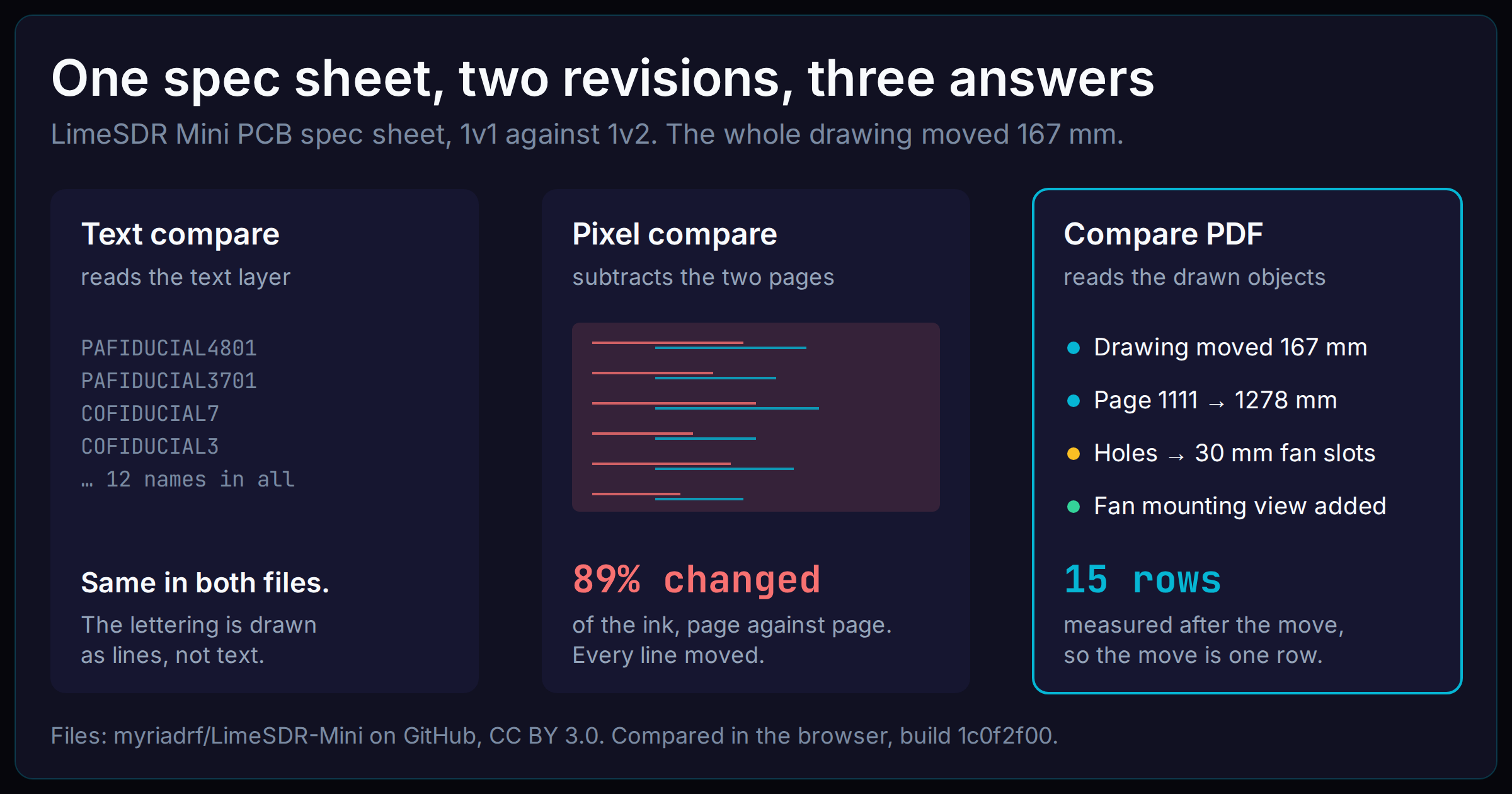
Between two revisions of an open-hardware spec sheet, the page grew and every line moved 167 mm. A pixel compare sees 89% of the ink change and a text compare sees nothing. Here is what really changed, and how to find it.
The usual way to check a drawing revision is to put the old and new sheets side by side, or flip between them, and look for what jumps. It works when the two sheets line up. When the page grows and the drawing shifts, everything jumps, and the eye has nothing to hold on to.
The LimeSDR Mini is an open-hardware software-defined radio, and Lime Microsystems publishes its board files on GitHub. Each revision includes a one-page PCB spec sheet for the board maker: the stackup, impedance targets, panel layout and assembly notes. Between revision 1v1 and revision 1v2, that sheet got 167 mm wider and the whole drawing moved right by the same amount.
We compared the two published sheets with a pixel compare, a text compare and Loft’s Compare PDF. Each gave a different answer, and only one of them names the changes.
What changed between 1v1 and 1v2
We read both sheets side by side, line by line. These are the changes:
The title reads LimeSDR Mini 1v2 instead of 1v1.
The page grew from 1111 × 1028 mm to 1278 × 1028 mm, and the whole drawing moved 167 mm to the right to make room.
The mounting holes became fan slots. On each of the four boards in the panel, two 2.00 mm mounting holes became two 3.2 × 4.3 mm slots, 24 mm apart, with a new note: “mounting/30mm FAN slots”. The dimension beside them changed from 2,54 cm to 24,00 mm.
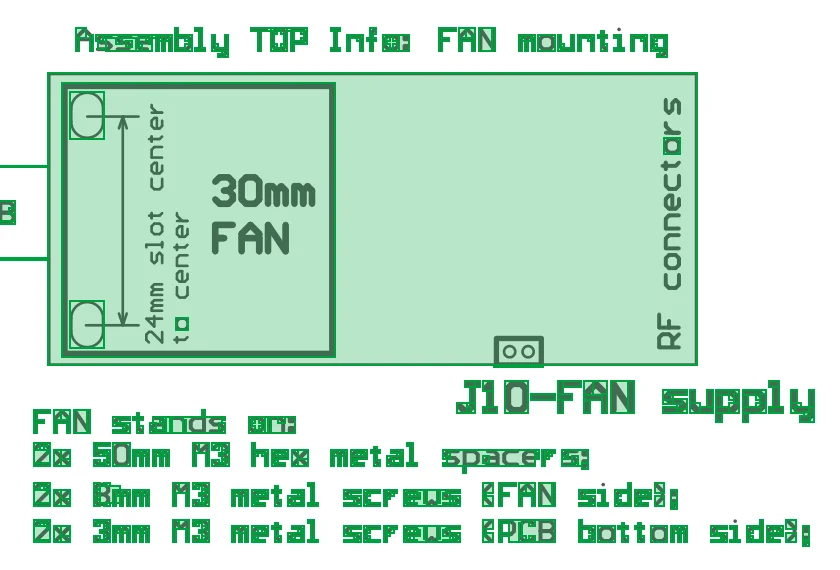
A fan mounting view was added in the space the move freed up: a top view of the board with a 30 mm fan, a two-pin J10 fan supply connector, and the spacers and screws the fan stands on.
A small via note on each board, printed upside down in 1v1, reads the right way up in 1v2.
The stackup, the impedance calculations and the twelve numbered notes are the same in both.
Why flipping and subtracting don’t work here
A pixel compare renders both pages and marks the pixels that differ. It’s the digital version of laying one print over the other on a light table.
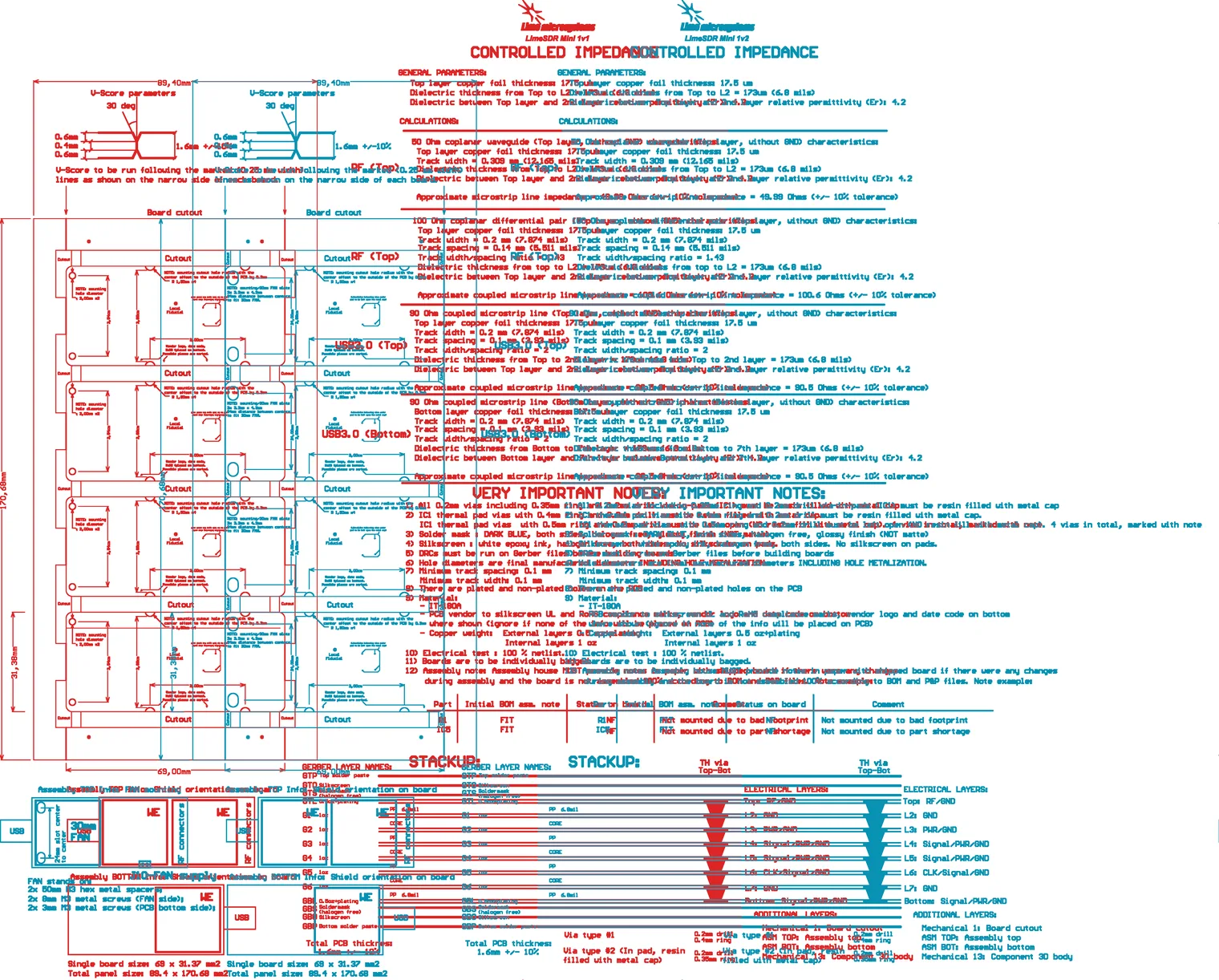
On this pair, laying one over the other at the same place on the page tells you almost nothing. The drawing moved, so nearly every line is in a new spot. We rendered both sheets at 144 dpi and laid them over each other: 89% of the inked pixels differ.
Both sheets at the same page position. Red is only in 1v1, blue only in 1v2, grey in both. Our rendering of the published files, 144 dpi.
DiffPDF’s Appearance mode, a pixel compare, found every change we marked on this pair. It also marked 10,114 squares across the sheet, and 7,690 of them sat on no change at all. The fan slots are in there somewhere. You still have to find them.
Why a text compare sees nothing
A text compare reads the words stored in the PDF and lines them up. It doesn’t care where they sit on the page, so the move doesn’t fool it.
But this sheet has almost no words stored in it. It was exported from Altium Designer, which wrote the lettering as drawn lines. The text layer holds only twelve names, the labels of the fiducial marks, and they’re the same in both files. On this pair, DiffPDF’s Words mode listed nothing, and Diffchecker’s text view listed two rows and found one of the six changes we marked.
Many CAD exports work this way, and a text compare can’t tell. It reports few or no differences, and an empty result reads like “nothing changed”.
What Compare PDF reports
Compare PDF reads the drawing as objects: lines, arcs, outlines, pictures and text, each with its position. Before it pairs objects between the two files, it measures how the drawing as a whole moved. Then it compares each object after that move.
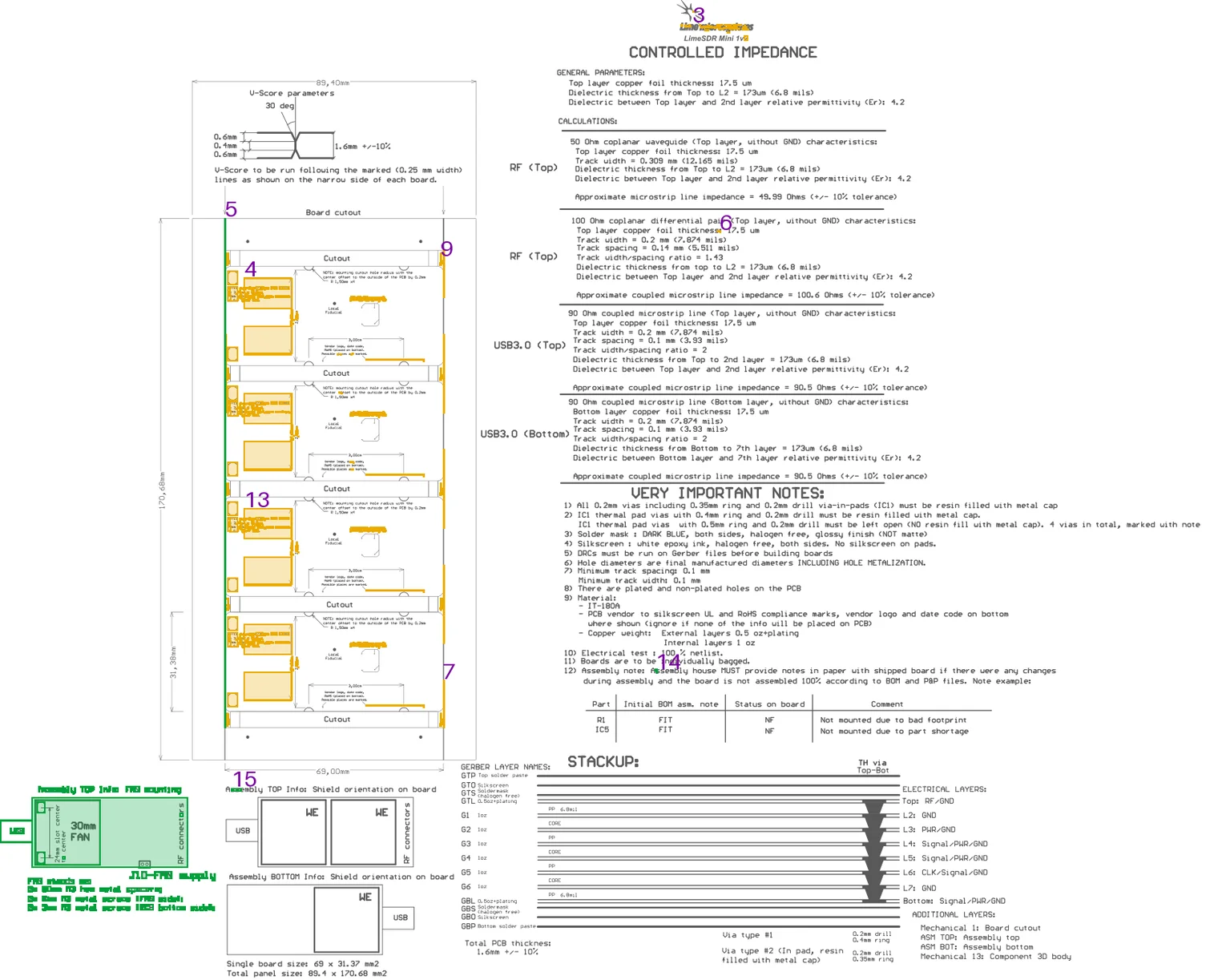
On this pair it lists 15 rows. The first two are the move and the page size, each stated once, as the app shows them:
1 drawing → moved 473.4 pt right, 0.5 pt down2 1111 × 1028 mm landscape → 1278 × 1028 mm landscape
473.4 pt is 167 mm, the width the page gained. With the move accounted for, the rest of the rows land on the changes. The engine colours each one by kind: yellow for a changed piece, green for an added one, red for a removed one.
The whole 1v2 sheet with Compare PDF's highlights and row numbers. The stackup and the notes carry none: they didn't change. Rendered by Compare PDF build 93d254d9; the live build gives the same 15 rows.
Rows
What they cover
3
The title, now 1v2
4 to 13
The panel: each board’s holes turned into fan slots, with the new note and dimension, the via notes, and the cutout edges
14
One character in the notes, drawn a little differently with the same text
15
The fan mounting view, added
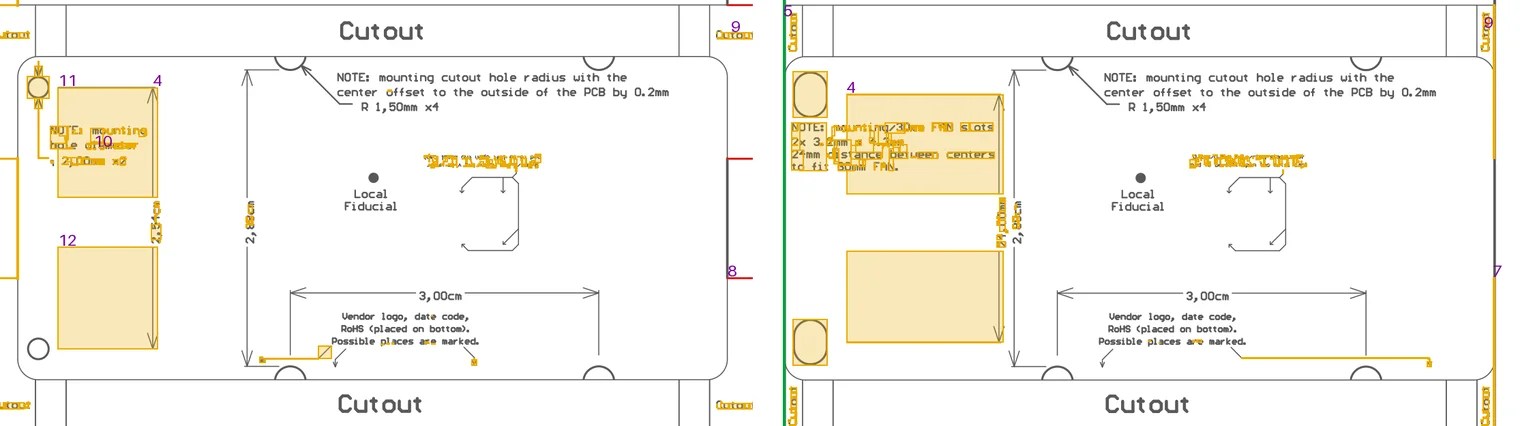
Here is one of the four boards, with the engine’s highlights on both sides:
One board, 1v1 on the left and 1v2 on the right, as Compare PDF highlights it. The round hole became a slot for a 30 mm fan, and its note and dimension changed with it. Parts the two sheets share, like the fiducial and the 3,00 cm dimension, carry no highlight.
And row 15, the view that explains the slots, marked as added from end to end:
Row 15 in green: the fan, its slots 24 mm apart, the J10 fan supply connector and the spacers and screws. LimeSDR Mini spec sheets by Lime Microsystems, CC BY 3.0.
What each engine reported on this pair
The other engines ran on this pair in our test of 625 pairs, from 5 to 7 November 2026, at their default settings. The method is in Three PDF compare engines on the same 625 pairs. Compare PDF ran again for this post, on build 1c0f2f00.
What it reported
Our 6 marked changes found
Compare PDF
15 rows; the move and the page size are one row each
6
DiffPDF, Appearance
10,114 marked squares, 7,690 on no change
6
Diffchecker, text view
2 rows
1
DiffPDF, Words
No differences
0
The pixel compare and Compare PDF both found everything. The difference is what you read afterwards: 15 rows, against ten thousand squares spread across a sheet that is 1.3 metres wide.
Why not line the pages up first?
You can line the pages up by hand: shift one render onto the other in an image editor, or crop both sheets to the same area. On this sheet that helps, because the whole drawing moved by one amount. But you have to notice the move, measure it, and apply it. Then you still get marked areas to read, not a list of what changed.
It also stops working when a drawing doesn’t move as one piece. When a revision moves one view and leaves the others, any single shift lines up one part of the page and misaligns the rest. Compare PDF measures the movement of the views as well as the whole sheet, so a view that moved is one row and not a field of marks.
The limits of this example
We build Compare PDF. This is one pair, and we chose it because it shows the problem clearly.
This pair was in our test set, and we have tuned the engine on that set. A pair it has never seen may come out worse.
We marked the six changes ourselves, against the rendered pages. The list at the top of this post is our reading of the two sheets.
Default settings. DiffPDF and Diffchecker might do better with options set for the job.
What this means when you review a revision
When a sheet’s layout changes, the changes you care about hide in plain sight. Every line moved, so nothing stands out. A pixel compare confirms that everything moved. A text compare may have nothing to read, and its silence looks like a clean result.
The way through is to account for the move first, then look at what’s left. On the LimeSDR Mini sheet, what’s left is a fan: new slots on every board, a view showing how to mount it, and the notes that go with them.
To check your own revisions, open both files in Compare PDF. It runs in your browser.