The first time most people need a passport photo is the worst time
to figure out how to get one. The renewal letter shows up two weeks
before your trip. The pharmacy print kiosk wants $15 and a forty
minute window. The free app you found wants an account, a
subscription, and a watermark removed in-app for $4.99.
You can get a usable passport photo at your document’s exact size
without any of that — using nothing but the browser already on your phone. This
post walks through how, what the per-country rules actually
require, and the few cases where the studio is still the right
call.
The short version
Open the ID Photo Maker on
your phone or laptop. Pick your document from 156 passport and visa
specs across 150+ countries — US, UK, India, Japan, China, the
Schengen countries and many more. Take a selfie with the front camera or upload an
existing photo. The tool sets the crop to your document’s pixel
size with a head-height guide. Where the document’s rules allow
edits, it removes the background automatically; where they forbid
edited photos (the US, UK, Canada, India and a few others), it
crops and resizes only. Where the authority publishes file rules,
the result checks the JPEG’s pixels, file size and format against
them and links the official page. Download. Print the sheet at any
drugstore that prints 4×6 photos, or upload the JPEG file directly
to the digital application.
Zero install. Zero account. Your selfie never leaves the device —
the background removal runs on your phone, not on someone else’s
server. Same URL works on iPhone Safari, Android Chrome, an iPad,
or a desktop browser.
Why per-country presets matter
A passport photo isn’t one photo. It’s many subtly-different
photos depending on which government’s database it goes into.
A printed US passport photo is a 2 × 2 inch square with the head
25-35 mm tall; the digital photo for an online renewal must be a
JPG, JPEG, PNG, HEIC or HEIF file between 54 KB and 10 MB. A US
visa photo is a different file: a square JPEG of 600 to 1200
pixels, 240 kB or less. A UK digital passport photo must be at
least 600 × 750 pixels and between 50 KB and 10 MB; the printed
one is 35 × 45 mm with a cream or light grey background and the
head 29-34 mm tall
(GOV.UK). An Indian
passport photo is 630 × 810 pixels with a white background,
“unaltered by computer software”, and prints at 35 × 45 mm
(passportindia.gov.in).
An online form can reject a file that misses any of these.
A studio photographer knows these by memory for the country they
handle most often. A generic camera app does not. A “free passport
photo” tool that uploads to a server may know them or may not;
you find out when the application is rejected, which costs you
the application fee and the trip date.
What the ID Photo Maker tool
does is bake the spec into the crop. Pick “US Passport” and the
crop overlay locks to 600 × 600 with the head-height window
shaded in the safe zone. Pick “UK Passport” and the crop becomes
630 × 810, above GOV.UK’s digital minimum, with a different head
guide. Where the authority publishes a file-size range, the JPEG
quality is tuned to land inside it, and the result lists each rule
it checked with a link to the official page. The user doesn’t have
to memorise the spec — the preset encodes it.
How the background removal works without uploading
The hard part of an ID photo from a selfie is the background.
Studios use a physical white sheet or a controlled lighting rig.
At home you’re using whatever wall you happen to be standing next
to, which is rarely the right colour and often has shadows.
The fix is portrait matting — a small machine-learning model that
identifies the silhouette of a person against any background and
produces an alpha mask so the background can be replaced. The
model that powers Loft’s tool is U-2-Netp, a small
publicly-released segmentation network of about 5 MB that runs in
your browser through ONNX Runtime Web, in a background worker.
What that means in practice: the first time you open the tool,
your browser downloads the 5 MB model. On a 4G connection that
takes one or two seconds. The model is then cached in your
browser, so every subsequent use is offline-capable. The
inference itself runs locally, on WebAssembly. A typical phone
processes a selfie in two or three seconds.
For documents whose rules say the photo must be unaltered — the
US, UK, Canada, India, South Korea, New Zealand and Australia — the
tool skips this step by default and only crops and resizes your
photo, so shoot against a plain light wall.
The relevant point for ID photo specifically: your selfie does
not leave your device. The model file does — once, at first run,
from our R2 CDN — but no part of your photo is uploaded anywhere
to be processed. The
pillar at /docs/how-it-works/ covers the
verification path; the short version is that you can open the
browser’s Network tab and watch the tool run without seeing your
photo in the request list.
The flow, step by step
The tool’s wizard walks through four steps. You don’t need to
memorise them; the UI guides each one. But here’s what’s
happening underneath.
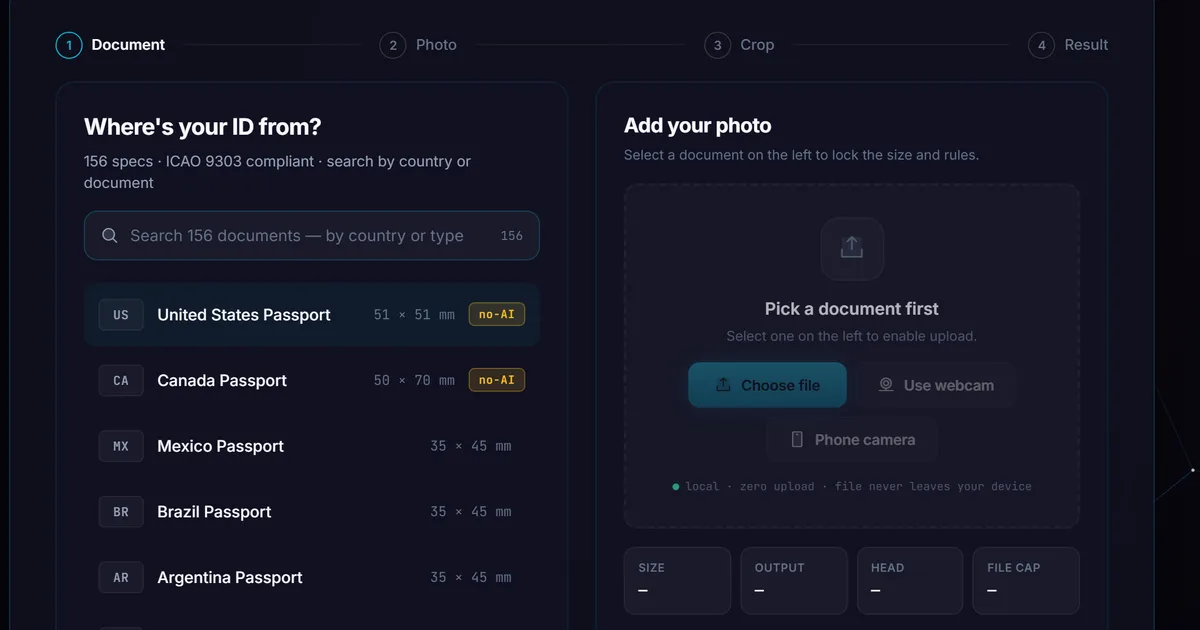
Step 1 — pick the document. A scrolling list of 156 passport
and visa specs across 150+ countries, searchable by country. Each
preset sets the output pixels, the print size, a head-height guide
and, where the authority publishes them, the file-size and format
rules. The crop overlay updates as soon as you pick.
Step 2 — take a selfie or upload. On a phone, the front
camera opens directly. There’s a safe-zone overlay showing where
your head should sit. If you’ve already taken a photo (e.g. one
on iCloud Photos or in your gallery), you can upload that
instead. The tool accepts JPEG, PNG, WebP, and — importantly for
iPhone — HEIC and HEIF input, so iPhone photos work without
conversion.
Step 3 — crop and background. This is where the matting model
runs, for documents that allow it. Your photo appears with the
background already removed, sitting on top of a default solid
colour; for a crop-only document it appears as you shot it. Pinch-zoom to position
the head inside the safe-zone overlay. Pick a different background
colour if the document requires one — white (most passports),
off-white, light grey (UK, several EU), or light blue (some
employee badges).
Step 4 — result. Download. Where your document has a published
file-size range, the JPEG quality is tuned to land inside it. The
result lists each file rule it checked against the official page,
and what it does not check: head size, expression, lighting and
background evenness. The print sheet places each copy at the
document’s size in millimetres. The filename includes the preset
name so you can find it later.
The whole thing is quick — the first run includes a model download; after that, subsequent uses are near-instant.
A specific note about the US State Department rule
In January 2026 the US State Department updated its photo
guidance to reject photos with AI-edited facial features. This
followed a year of reports of submissions where the applicant’s
face had been silently retouched by mobile apps.
For a US passport or visa the ID Photo Maker does not touch the
photo by default: it crops and resizes only. Where it does replace
a background, it only segments it — it does not retouch the face,
the skin, the eyes, or anything else about the person. The
U-2-Netp model is a segmentation network, not a generative or
beautification network. It outputs an alpha mask for the
silhouette; it doesn’t redraw any part of the subject.
This is a deliberate design choice. The
US State Department photo requirements page
is the authoritative source if you need to verify anything before
submitting; this post and the tool are best-effort against
published specs, not legal advice.
What works, what doesn’t
The tool works well for:
- Adults with neutral expression and reasonable lighting.
Window light or even ceiling light is usually fine.
- Glasses-off photos for documents that require it.
Glasses-on works for documents that allow it.
- Most skin tones, hair colours, hair lengths. The matting
model handles these well. Edge cases on extremely thin or
fly-away hair sometimes produce a slight halo, fixable by
re-taking the selfie with the hair behind the shoulders.
- iPhone HEIC files, Android JPEGs, PNG screenshots, WebP
exports. Any common image format works.
- Offline use after the first run. Pin the
ID Photo Maker and the
service worker keeps the model and tool code cached.
It does not work well for:
- Photos taken in deep shadow or with extreme backlighting.
The matting model struggles when the silhouette isn’t clear
to it. Retake in better light.
- Children under 1. Infant passport photos have special rules
(eyes can be closed, parent can hold the child against a white
sheet). The current matting model isn’t tuned for infant
faces. Studio is the right call.
- Some biometric capture requirements. A handful of countries
(notably some Schengen renewal centres) require biometric
capture at the application desk — the photo you bring isn’t
used. Check before you go.
- Documents with witness requirements. UK first-time
passport photos for children need a witness who knew the child
signature on the back. The tool produces the photo; you still
need the witness.
Why this doesn’t need an app
Three things make this work without anything to install.
The first is WebAssembly, which lets the browser run the
matting model at speed comparable to a native binary. The model
is the same .onnx file native iOS and Android apps would use;
the browser just runs it in a different runtime.
The second is the Service Worker, which caches the tool and the
model after first use so the second visit is offline-capable.
You can pin the tool to your home screen via “Add to Home Screen”
on iOS or “Install App” on Android, and after that it behaves
like a native app — icon, standalone window, offline launch —
without any actual native install.
The third is that browser hardware access — camera, file picker,
gallery — has caught up with what native apps had access to. iOS
Safari can use the front camera, Android Chrome can pick from
Google Photos, both can read HEIC. The hardware no longer
favours the native path the way it used to a few years ago.
The combination means a tool that genuinely had to be a native
app five years ago can be a webpage today, and the user gets the
same outcome with substantially less friction.
When the studio is still right
There are real cases where paying the $15 at the pharmacy or
visiting the embassy-approved photographer is the right call:
- Same-day applications where rejection is catastrophic. If
you’re getting an emergency passport and you can’t afford to
have the photo bounced, pay the studio for the certainty.
- Witness-signed photos. Some children’s passports require a
witness’s signature on the photo. The studio prints
appropriately; printing a Loft-generated JPEG at home doesn’t
give you a witness.
- Biometric capture for some visas. If the application asks
you to attend a biometric appointment, the photo gets taken
there. Don’t pre-make one.
- Specific country requirements we haven’t shipped a preset
for. The presets cover most of what most people need, but
if your document needs a specific photo type we don’t list —
Pakistan’s NICOP, Russian visa, anything else — the studio
knows the spec and we may not. (Submit a
tool request and we’ll add it if there’s
demand.)
For the routine adult passport or visa case covered by the preset
catalog, the browser-based approach is
the right shape. The studio is the right call for the edge
cases.
What I’d verify before printing
Three quick checks before you commit a passport photo to the
mail:
The dimensions match the consulate’s published spec. The preset
should handle this, but eyeball it against the official guide
linked from your application — a 600 × 600 file should look
square, a 35 × 45 mm file should look slightly taller than wide.
The head height is inside the spec window. The safe-zone overlay
during cropping is a guide: the tool does not measure your head,
and it lets you download any crop. So check the downloaded JPEG
against the head-size rule on the official page.
The file size is inside the published range. Where the authority
publishes one, the tool tunes JPEG quality to land inside it and
the result shows the check, but if you’ve re-saved the file
through something else after download, the size may have shifted.
Check the file size in your file manager before uploading.
That’s it. Selfie to printable JPEG, start to finish.
The ID Photo Maker is at
/tools/image-tools/id-photo-maker/. The privacy mechanism
that lets it run without uploading is covered in the
pillar at /docs/how-it-works/, section 4
specifically.