Side-by-side or overlay PDF diff driven by one engine that reads each file into a structured model — text, vector geometry, images, form fields, annotations — and compares the models. Moves show as moves, edits show only where they happened, and any PDF type works without picking a mode.
Open a STEP / STP part and it measures itself — volume, thinnest wall, draft and undercut checks on load, plus hole detection with a BOM. Measure, section, export STL. Rust + WASM B-rep kernel, runs in your browser.
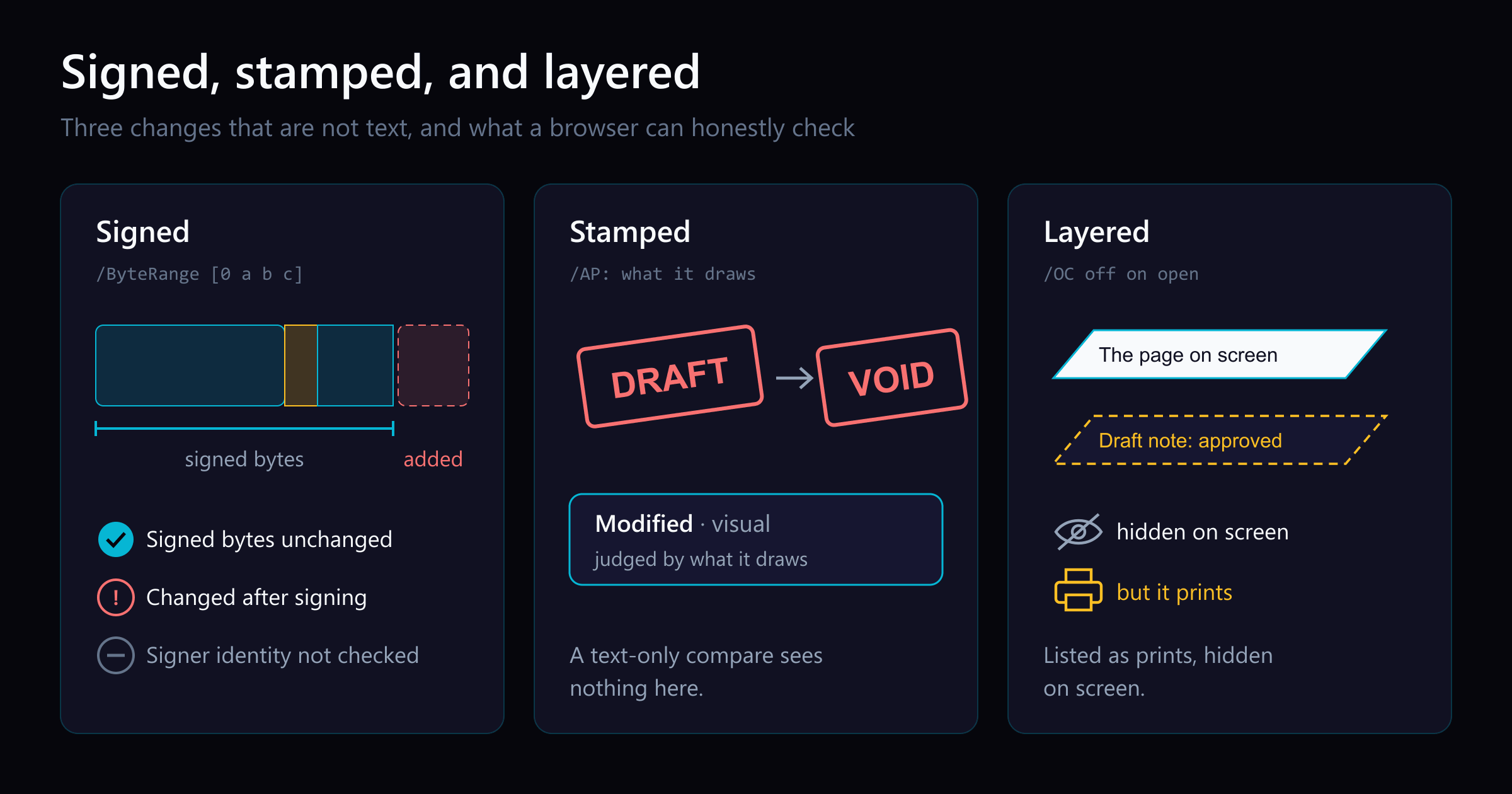
A signature appearing or a stamp turning from DRAFT to VOID is a change, but not a text change. What a browser can honestly check on a signed, layered PDF.
A signature field with ink in it, where the same field on the other version has none, is invisible to a compare that only reads text. So is a stamp that changed from DRAFT to VOID in matching red ink, or a markup redrawn in a new colour. All three look the same to a tool that only asks whether text changed, because none of them are text. Compare PDF judges fields and annotations by their appearance, not only by their contents, and it reads a file’s layers and signature the way a reviewer would have to by hand.
None of that makes a browser able to say a signature is valid. That word does not appear anywhere in what follows, on purpose.
A stamp that only changed visually
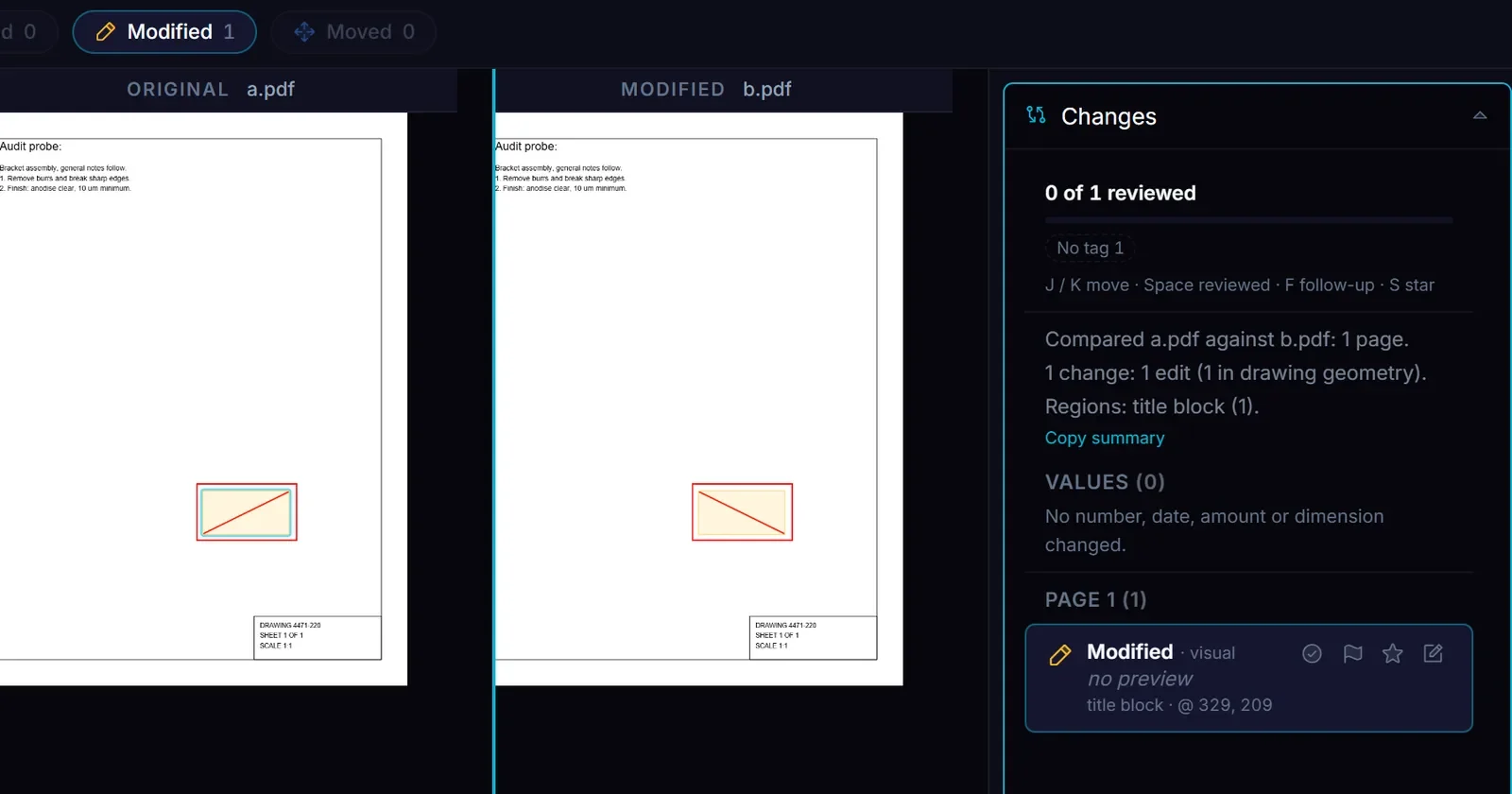
Here is a test pair: an approval stamp, drawn as a rectangle with a diagonal line through it, redrawn in a different colour between two versions of a drawing. Its text and position did not change.
The stamp's text and position did not change, only its colour. A test pair.
The change list records this as “Modified · visual”, with no values changed, because nothing about it is a number, date or amount. It is a redrawn shape. A compare that reads only text finds nothing here, and neither does one that reads only a field’s value: a signature field that goes from empty to signed has no text value at all. Judging the field by what it draws is what makes the change visible.
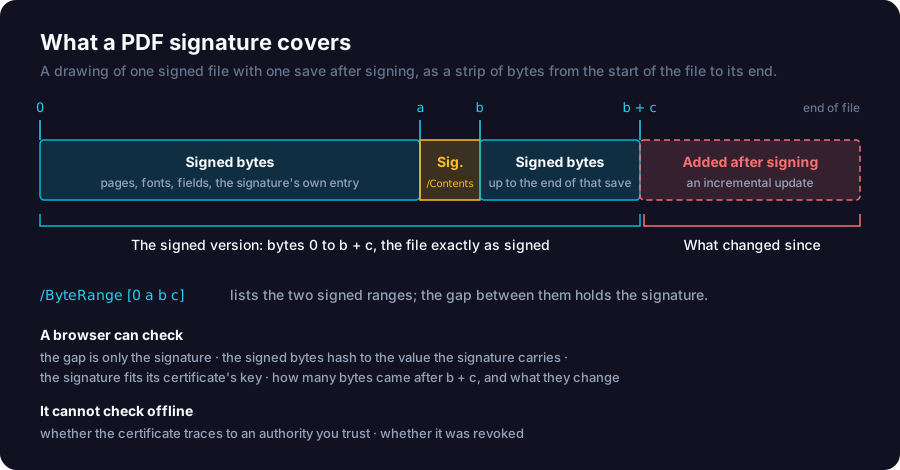
What a browser can check about a signature
A signature field in a PDF points to a signature dictionary. Shortened, with made-up offsets, one looks like this:
<< /Type /Sig /Filter /Adobe.PPKLite /SubFilter /ETSI.CAdES.detached /ByteRange [0 84120 102942 7311] % two signed ranges; the gap holds /Contents /Contents <30824a1f06092a86...00> % the signature itself, hex-encoded /M (D:20260914101522Z) % the signing time the signer claims>>
pdf.js, the PDF library Compare PDF and Firefox use, reports this field as {type: "signature", value: null}. Reading the dictionary means walking the file’s own object index directly. Once that is done, a handful of checks are genuinely feasible inside a browser, entirely offline:
Whether the bytes the signature covers run to the end of the file as it was at signing time, and how many bytes, if any, were added afterward.
Whether the signed bytes hash to the value the signature carries, computed with the browser’s own WebCrypto.
Whether the signature over that hash matches the public key in its own certificate.
The certificate’s subject, issuer, serial number and validity dates, read and shown, never judged.
The certifying signature’s permission level, when a file is certified rather than only signed: no changes allowed, form filling and signing allowed, or form filling, signing and comments allowed.
The byte range names exactly what was signed; anything after it was added later, permitted or not.
Two things are not feasible offline, and no amount of local computation changes that. Trusting a certificate means checking it against a root of trust — a browser page has no such store to check against. Revocation means asking the certificate authority whether the certificate was later cancelled, which means a network request Compare PDF does not make. So the honest ceiling is: the signed content has not changed, checked without contacting anyone, and nothing about who signed it or whether their certificate still holds.
Compare PDF’s signature panel says exactly that. On a signature that checks out, the tool reads: “The signed content has not changed since signing. Checked in your browser.” followed by, on its own line: “The signer’s identity was not checked against a trusted authority.” A footnote on the panel repeats the limit in full: the check cannot confirm who signed or whether their certificate was revoked, and points to a qualified validation service for a legal check.
What the file can honestly say
Wording used
Bytes unchanged since signing, hash and signature check pass
“The signed content has not changed since signing. Checked in your browser.”
Signer’s certificate details
Shown as read (subject, issuer, serial, validity) — never judged
Trust in the certificate
“The signer’s identity was not checked against a trusted authority.”
Certificate revoked or still valid
Not checked; would need a network request the tool does not make
A qualified legal check
Left to “a qualified validation service”
Changed after signing, and what a certification actually permits
A file can be signed once and then saved again, appending an incremental update after the signed bytes. That is not a defect in PDF — timestamps and long-term validation data are meant to be added this way — but it means “signed” and “unchanged since you last looked” are two different claims. When bytes were added after a signature, the panel says so directly: the file was changed after that signature was applied, with a count of bytes and, where more than one later save happened, how many. A “Compare signed version with this file” control recovers exactly the bytes that were signed and reruns the ordinary compare between that recovered version and the current file, so the changes after signing show up as an ordinary change list rather than a vague warning.
Certification narrows this further. A certifying signature can permit no further changes at all, form filling and signing, or form filling, signing and comments. When later changes go beyond what the certification allows, the panel names them. When every later change is technically permitted, it still recommends reviewing them anyway, because an allowed change — a new annotation, a filled form field — can still be drawn directly on top of live content. Permission to change a file is not the same question as whether a given change matters.
Layers: what shows, what prints, and what hides from both
Optional content groups, the PDF specification’s name for layers, add a second axis: content that is present in the file but switched off in the view, in print, or both. pdf.js reads text regardless of layer visibility, so a naive extraction treats hidden-layer text as ordinary text. Compare PDF keeps that text and marks it as on a hidden layer. Layer IDs are also unstable — they are object references, and the same layer can carry a different ID the next time the file is saved — so matching a layer across two versions has to go by name, not ID.
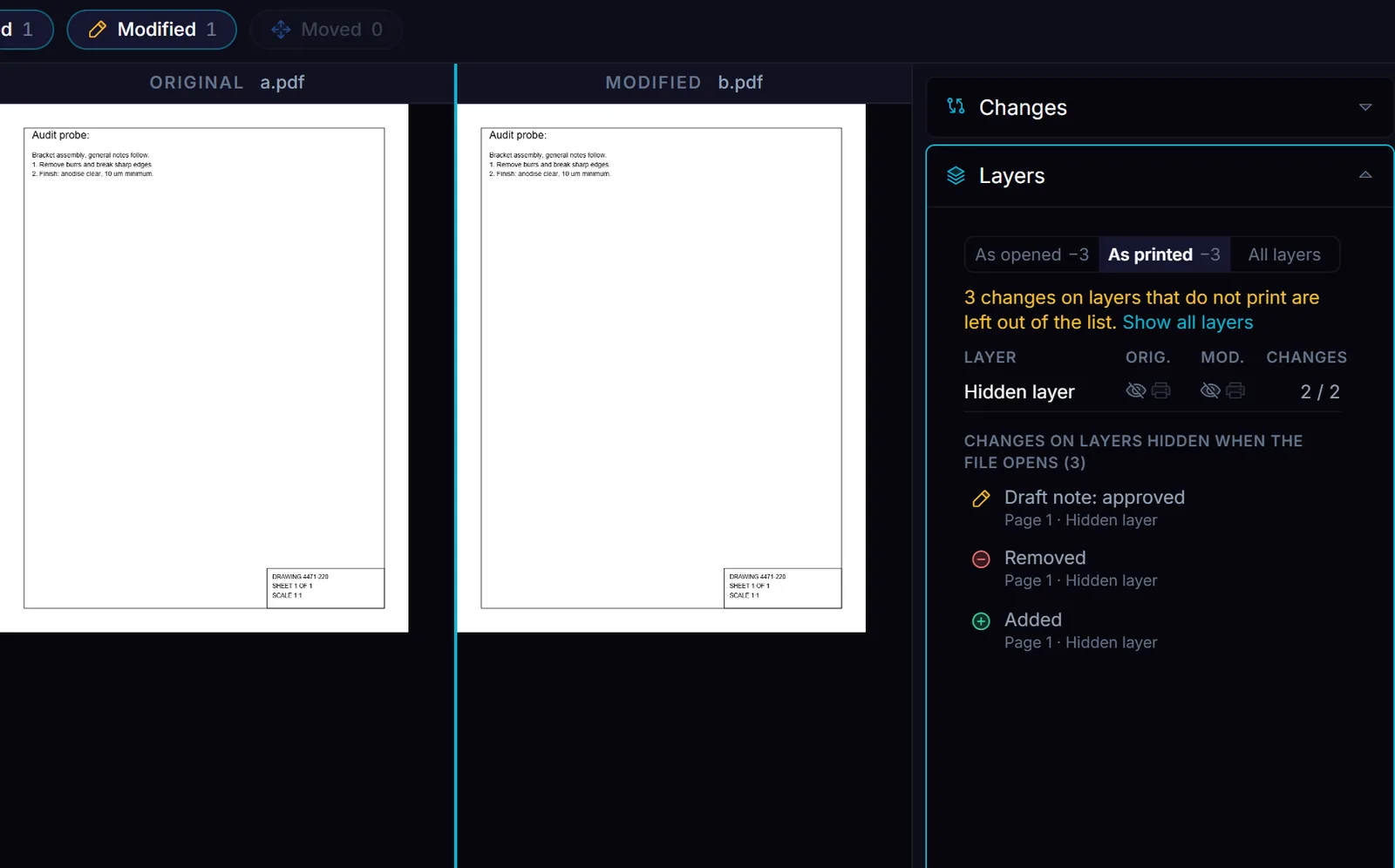
Here is the same idea on a test pair: notes on a layer that is switched off when the file opens.
The layer table shows each file's screen and print state. Three changes sit on a layer that neither shows nor prints, and the panel lists them by name.
The layer panel offers three presets: “As opened”, “As printed”, and “All layers”. Each one shows the changes a reader would see that way. Here the layer is off on screen and off in print for both files, so “As opened” and “As printed” each leave its three changes out of the main list. With “As printed” selected, the panel says so in a sentence, “3 changes on layers that do not print are left out of the list”, with a link to show all layers. It never drops them silently. Below the layer table, the three changes are listed by name: a modified note, a removed line, and an added one. None of them can be found by looking at either page.
The case a legal or AEC reviewer most needs flagged is the reverse: a layer that is off on screen but prints. Two entries in the file set that up:
/OCProperties << /OCGs [12 0 R] /D << /OFF [12 0 R] % off when the file opens /AS [<< /Event /Print /Category [/Print] /OCGs [12 0 R] >>] >> >>12 0 obj << /Type /OCG /Name (Review notes) /Usage << /Print << /PrintState /ON >> >> >> % on when it prints
The /AS entry tells a viewer to apply the layer’s print setting when it prints, so the notes go out on paper. Its changes stay in the “As printed” list, and the layer panel marks the layer and each of its changes “prints, hidden on screen”, because that content goes out on paper even though a screen review never shows it.
What this cannot tell you
A signature that checks out tells you the file has not changed since it was signed. It does not tell you the signer was who they claimed, and it cannot, offline, tell you whether their certificate still holds. A shadow attack — content prepared at signing time but only revealed by a later, permitted update — is exactly the pattern these checks are built to catch: coverage and appended-bytes checks flag the update, and a certification’s permission list flags whether that kind of update was even allowed. A widely cited study of PDF viewers found 16 of 29 tested vulnerable to some form of shadow attack, which is the reason “report every change after signing, even permitted ones” is the rule here rather than treating a permitted change as no-news.
None of this replaces a real validation service for anything that has to hold up as a legal signature. What it gives you is a record: a signature appearing, a stamp changing colour, or a note hiding on a layer each shows up in the change list. You can read a signed or layered file’s real state in Compare PDF.